Set Up Shipping Method for Shipping via Bol.com
To use Shipping via Bol.com (VVB), you need a separate shipping method within the Afosto platform. By linking this to the Bol.com integration, you can use Shipping via Bol.com. Follow the steps below to set this up for your connection.
Create VVB shipping method
To create a shipping method for VVB, navigate to admin.afosto.app/shipments/shipping-methods. Click here on 'Add' to add a new method. Choose "Bol.com" as the carrier.

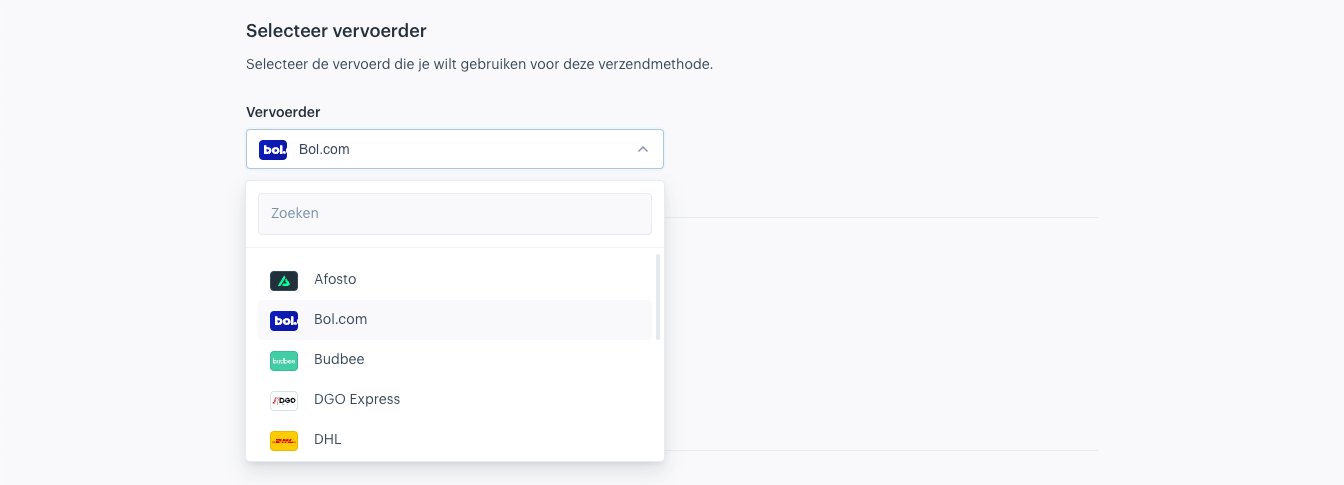
Select Bol.com as the carrier.
In the zone, indicate in which countries this method is available. For Bol.com, these are the Netherlands and Belgium. If you do not yet have a zone for this, you can create one by clicking "Add new zone." In the example below, we named the zone 'bol.com'.

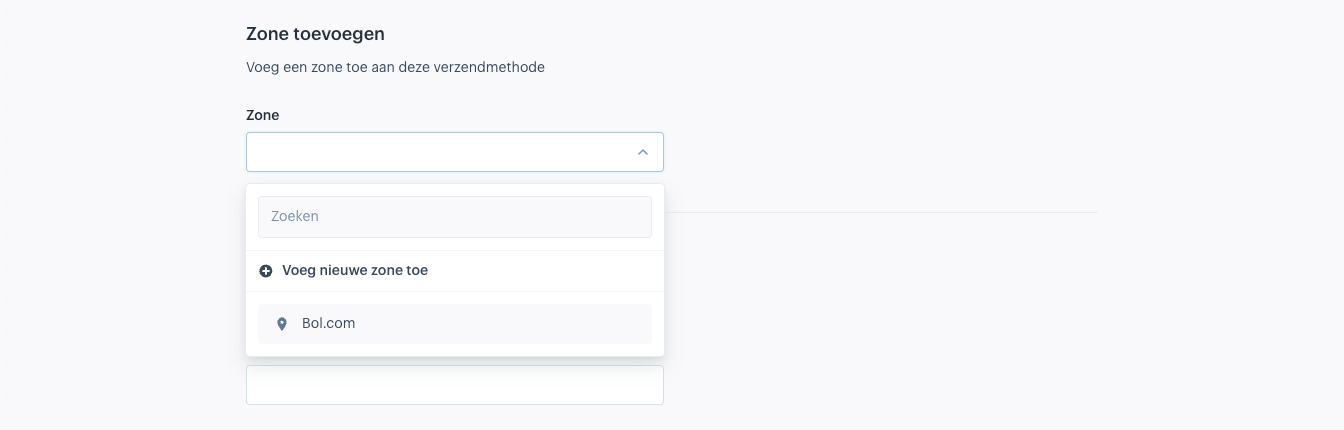
Add as Zone the countries in which you sell via Bol.com.
The name is automatically filled with 'Bol.com'. You can still adjust this in the 'Name' field.


If desired, adjust the name of the method.
Make sure the option Shipping method activated is turned off. We do this so that not every channel can use this method. To activate it for your Bol.com channel, we will add an exception.


Turn off 'Shipping method activated' so that not every channel can use this method.
Add exception
To activate the shipping method only for Bol.com channels, we can add an exception. With this exception, we can add rules for when the method should be active.
Give the exception a descriptive name, for example: 'Channel = Bol.com'. We will add an 'If' rule that activates the method. This is done based on 'channel.id'. Click on 'Select a field' and choose 'Channel' and then 'Id'. You can also manually enter the field path. Click save to confirm the path.
In the second field, choose 'Equals' and enter the ID of your sales channel in the third field.

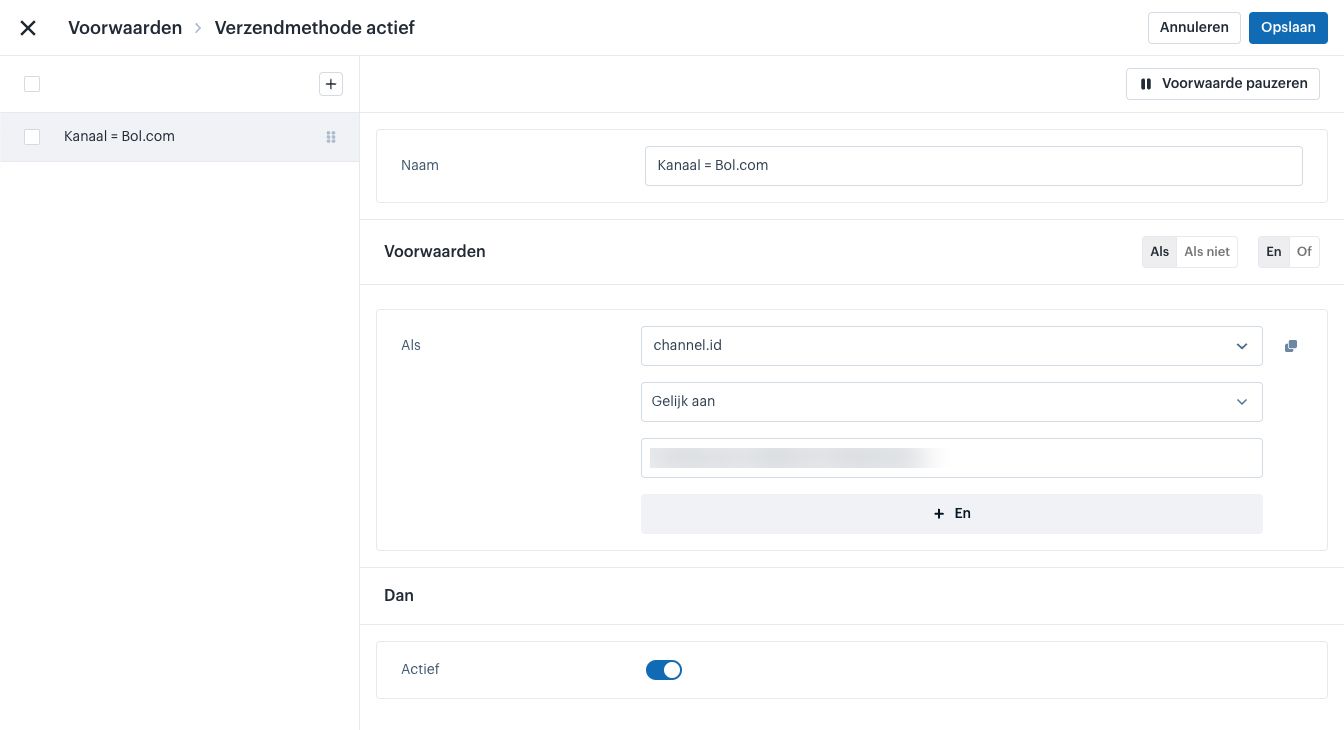
Add the Bol.com channel as an exception so that the shipping method can be used for this channel.
Save the exception and then save the shipping method. We now have a shipping method that can be used for Shipping via Bol.com and is only active on the Bol.com channel. We only need to link the provider.
Link provider
After creating the VVB shipping method, you return to the 'Shipping Methods' overview. Here you will see the method we just created in the table. In the 'Provider' column, there is a button labeled 'Link'. We still need to link the method to Bol.com so that, for example, the shipping labels are created via Bol.com. Click the 'Link' button to choose a provider.

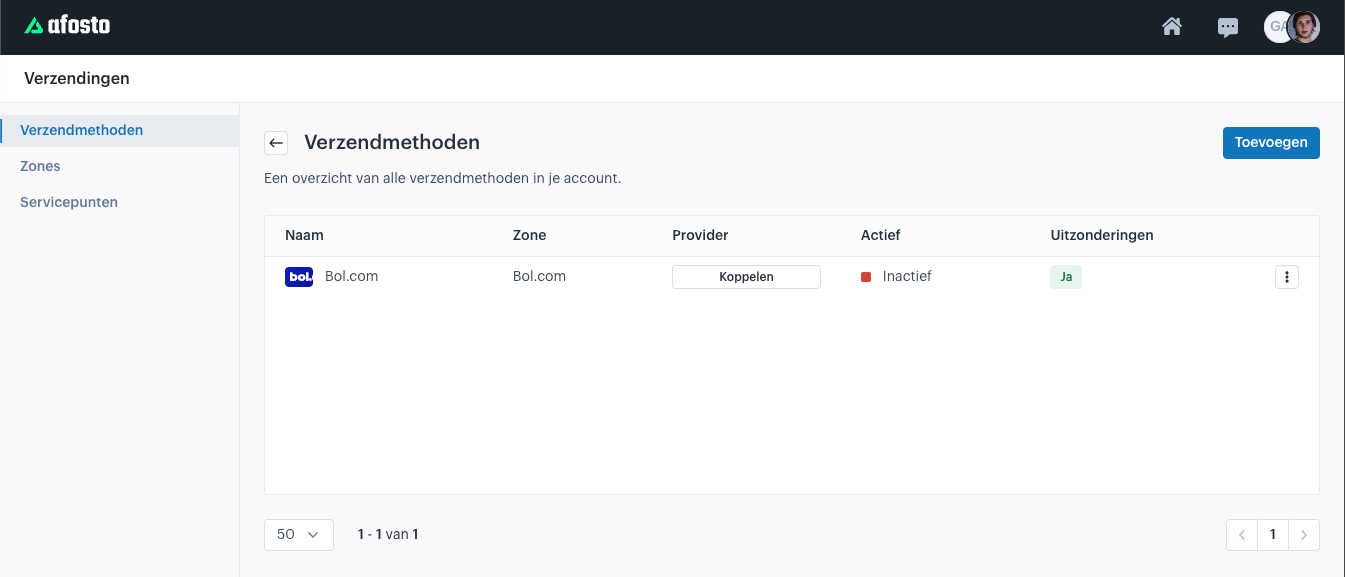
Click on 'Link' to connect the method to your Bol.com integration.
In the popup, choose the Bol.com provider created by the integration. Then click 'Link' to establish the connection.

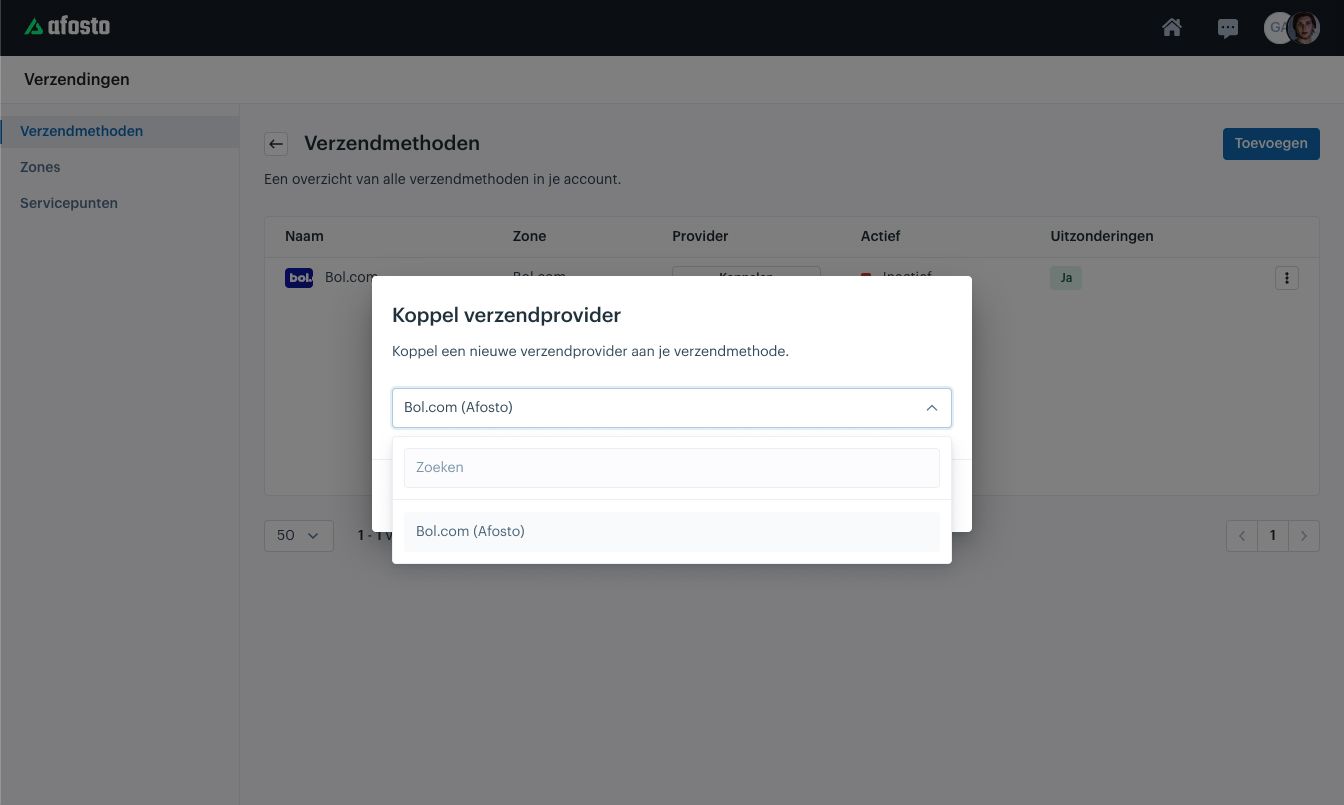
Select your Bol.com integration.
You are now fully ready to ship the Bol.com orders received in Afosto using Shipping via Bol.com.